HTML/SCRIPT

(adsbygoogle = window.adsbygoogle || []).push({});

Tuesday, 30 December 2014

Sony Xperia Z2 Problem and Solution

Sony Xperia Z2 is among the top most selling smartphone in Unit5ed States and around the world. The cell phone is often compared with Sony Xperia Z1, Sony Xperia Z3, Samsung Galaxy S5 and Apple iPhone 6.
Recently many Sony Xperia Z2 owners have been complaining about several hardware and software problems and issues and want to know about solutions to their issues. Most common problems and issues with the Sony Xperia Z2 smartphone are:
  1. Overheating Problem.
  2. Speaker Problem.
  3. WiFi Connectivity Problem.
  4. USB Connectivity Problem.
  5. Gaps in the Handset.
  6. Slow Charging Problem.
  7. Tap to Wake Problem.
  8. Call and Notification Volume Problem.
  9. 4 K Video Recording Problems.
Let us now look and possible solution to the above problems.
Sony Xperia Z2
Sony Xperia Z2

Sony Xperia Z2 Overheating Problem and Solution

  1. The overheating problem occurs mainly during 4K video recording.
  2. Try to use a high capacity external SD card. This phone supports up to 128 GB.
  3. Change settings to save videos in the external storage. Do not shoot 4K videos for long duration. Shoot 4K video in short duration limited to few minutes.
  4. Try to avoid using image intensive apps that may lead to overheating.
  5. Do not open too many applications simultaneously and close all applications running at the background.
  6. Forthcoming software update may fix the issue. Go to > Settings > about phone > Software updates > System updates.
  7. If nothing works then take the cell phone to authorized Sony service center.

Sony Xperia Z2 Speaker Problem and Solution

  1. Check and remove and external elements such as paper etc.
  2. Check volume level. Make sure it is set to maximum.
  3. Go To > Settings > Sound > Change your ringtone or notification sounds.
  4. Go To > Settings > Sound > Sound effects > Sound enhancements > Settings> Switch ON xLoud.
  5. If nothing works then take the cell phone to authorized Sony service center.
Sony Xperia Z2 Call and Notification Volume Problem and Solution

  1. Check out the above solution.

Sony Xperia Z2 WiFi Connectivity Problem and Solution

  1. Reboot both your phone and check if the problem is solved.
  2. Check out if the latest version of firmware is installed in the phone. Go to >Settings > about phone > Software updates > System updates.
  3. Go to Settings > Wi-Fi > Press option button / icon > Tap Advanced > Tap Keep Wi-Fi on during sleep > Select always.
  4. Make sure you are within reasonable range from the WiFi router and remove any protective case from your phone. Remove the phone from docks or stand to see if the Wi-Fi signal strength improves.
  5. Make sure potential interfering devices or appliances are not placed close to the Wi-Fi router.
  6. Make sure that your password is correct and that it doesn’t contain any special characters.
  7. Set the IP manually. Go To > Settings > Wi-Fi > Tap and hold the network you are connecting to > Select Modify network > Tick the Show advanced optionsbox > Select Static under IP settings > Save.
  8. If none of the above tips help, try to connect to another network to see if it works.
  9. Turn OFF battery saving mode and see if the problem is fixed.
  10. Reset the phone to factory settings.
  11. If nothing works then take the cell phone to authorized Sony service center.

Sony Xperia Z2 Gaps in the Handset Problem and Solution

  1. According to official sources and news, this is a hardware issue and Sony is looking into the matter. Take your handset for Sony Center for waterproof test or replacement.

Sony Xperia Z2 Slow Battery Charging Problem and Solution

  1. Check out the charger cable for any fault. Use another charger and check.
  2. Always use the original charger. Duplicate, cheaper or third-party chargers can cause problems.
  3. Make sure the charger is properly connected.
  4. Check out the charging speed using USB.
  5. If the problem is not solved then take the cell phone to authorized Sony service center.

Sony Xperia Z2 Tap to Wake Problem and Solution

  1. Make sure the feature is ON. Go To > Settings > Display > Tap to wake up.
  2. Double tap quickly on the screen to wake the device up.
  3. Tap with your fingertip twice in exactly the same spot on the Touchscreen. It works best when the phone is on a hard surface.
  4. If the problem is not solved then take the cell phone to authorized Sony service center.

HTC One M8 Problem and Solution

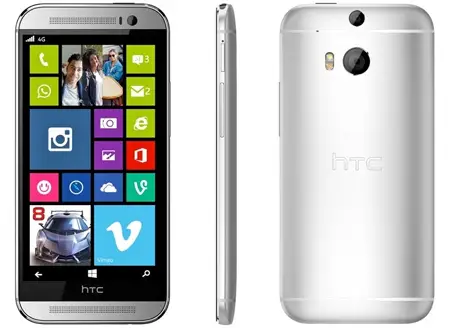
HTC One M8 is among the top 10 most selling smartphone in United States and around the world. But like any other smartphone, like Apple iPhone or Samsung Galaxy Smartphone, the HTC One M8 cell phone too has some problems and bugs.
Here I mention some of the major problems and issues with this smartphone and how to solve and fix the problems. Major Problems / Issues with the HTC One M8 are:
  • Aspect ratio errors while watching videos in landscape mode causing the video player or the cell phone to hang or crash.
  • Intermittent connectivity issues on 4G LTE
  • GPS not working properly, mainly at night. Not able to find or locate places.
  • Infrared or IR Blaster not working properly, mainly at night.
  • Data connectivity problems on T-Mobile 4G and WiFi.
  • Camera problem. Camera hangs or crash. Problems with portrait view.
  • No extreme power saving mode option.
  • No SIM Card Error. Phone often appears to be in roaming.
  • Keyboard language problem.
  • The cell phone crashes too often.
  • Bluetooth not working.
  • Email App not working.
  • Is HTC One M8 waterproof?
HTC One M8
HTC One M8

HTC One M8 Video Player Landscape Mode Problem and Solution

  1. Try to use MX video player app. Download this awesome video player from Google Play for Free.
  2. If the problem is not solved then try to Factory Reset the Cell Phone. I hope you know how to reset the phone.

HTC One M8 Data Connectivity and WiFi Problem and Solution

  1. The Data connectivity problem with T-Mobile seems like a network problem rather than hardware or software problem.
  2. The WiFi works fine with most handsets. Try to check the password. If nothing works, then try to reset the cell phone and check.
  3. If nothing works then visit the retailer or authorized service center.

HTC One M8 GPS Problem and Solution

  1. There seems like some glitch in the software. Try to reset the phone.
  2. If the problem is not solved then visit the retailer or authorized service center.

HTC One M8 Infrared / IR Blaster Problem and Solution

  1. Install Universal IR Remote from Google Play for Free and check if the problem is solved.
  2. Make sure you have selected the right TV Model.
  3. Try to reset the cell phone and recheck.
  4. If the problem is not solved then visit the retailer or authorized service center.

HTC One M8 Camera Problem and Solution

  1. If the camera causes problem in portrait view then do following – Log into the LastPass application > Go to Preferences > Edit App Associations > Select Camera > Change the selection to “Do not show fill window”.
  2. If you face problems with using the Duo camera then try to do some practice. Try to maintain some distance between ‘layers’ in an image and it will work fine.
  3. If you have issues with the camera resolution then is no good solution to the problem. You may opt for Sony Xperia Z2 or Samsung Galaxy S5.

HTC One M8 No Extreme Power Saving Mode Problem and Solution

  1. Nothing much can be done with this issue. Try to use the cell phone without Extreme Power Saving. Maybe a software update will fix the problem. Keep checking for new updates by going to > Settings > Software Updates Check Now.

HTC One M8 No SIM Card and Roaming Problem and Solution

  1. Remove and reinsert the SIM card and check if the problem is fixed or not.
  2. Try to clean the SIM card tracks on the PCB by using IPA solution or alcohol.
  3. If the problem is not fixed then try to insert another SIM Card and check.
  4. If the problem is not solved then visit the retailer or authorized service center.
  5. The roaming problem may be solved with the next software update.

HTC One M8 Keyboard Language Problem and Solution

  1. Download another built-in Swype keyboard from Google Play and see if the problem is solved.
  2. If you do not want to any other keyboard but just the original default one then > open the SMS app > bring up the keyboard > hold the cog button > the keyboard settings menu will appear > Tap Keyboard Selection > uncheck the unwanted languages.
  3. Try to close all the active apps running in the background.
  4. Clear RAM at regular intervals.
  5. Do not open too many apps simultaneously.
  6. If nothing works the try to reset the phone.
  7. If nothing works the try to reset the phone.

HTC One M8 Crashes Too Often Problem and Solution

  1. If the problem is not solved then visit the retailer or authorized service center.

HTC One M8 Bluetooth Problem and Solution

  1. Make sure firmware is up to date.
  2. Delete all previous Bluetooth pairings and try to connect again.
  3. Rename your cell phone.
  1. If the problem is not solved then visit the retailer or authorized service center.

Is HTC One M8 waterproof?

No, HTC One M8 Cell Phone is NOT waterproof. It is water resistant to some extent. Try to use a rugged case for safety.

Samsung Galaxy S5 Problem and Solution

The Samsung Galaxy S5 (Available as – SM-G900F, SM-G900I, SM-G900K/G900L/G900S, SM-G900M, SM-G900A and SM-G900T) is the latest very popular and widely sold Android smartphone from Samsung.
But, like any other mobile cell phone, this smart phone too has some bugs and problems that need to be fixed.
Following are some of the problems and solutions related with Samsung Galaxy S5 Cell Phone.

Samsung Galaxy S5 Screen Problem – The screen doesn’t turn on.

Many buyers and users of Samsung Galaxy S5 mobile cell phone are complaining about its screen problem. In many cases, the screen doesn’t not turn ON Automatically when the phone is on STANDBY for some time. The screen just remains black.
Here is how to solve and fix this problem:
  1. Restart the phone or Turn it OFF and again Turn it ON.
  2. If the problem is not fixed then remove the battery and again insert it back.
  3. You may also have to change the “Lock Screen” Setting. Just go to Settings and select “Device”. Select the “Lock Screen” Option and then select “Additional Information”. Uncheck and turn OFF the setting.
  4. If the problem is still not solved then you may have to Disable the “S Health App and the Smart Remote App. Go to – Settings – Accessibility – Vision – Dark screen – Turn OFF.
  5. Buggy applications can also cause the problem. Check ad uninstall.
  1. If nothing works then Factory Reset the Phone. Go to Settings – Backup and reset- Factory data reset.

Samsung Galaxy S5 Camera Problem – Camera Failure, Slow Camera

Many users have complained of several problems with camera of Samsung Galaxy S5. Sometimes the camera is slow to respond and sometimes a warning pops out saying “Camera Failed”.
Here is how to solve and fix this problem:
  1. Restart the phone and see if the problem is solved or not.
  2. Go to Settings – Application Manager – Camera App – Force Stop, Clear cache, and Clear data.
  3. If the problem is not solved then remove the MicroSD card and save the photos and videos in the phone.
  4. Have you installed any app that uses the flashlight like the Flashlight App. If yes, then try to uninstall the app.
  5. If the camera responds too slowly then do following – Tap on the Gear icon located at the bottom left – Turn OFF Picture stabilization. This feature often slows down the camera.
  6. If nothing works the Factory Reset the Phone as explained above.
  7. If the problem is still not solved then visit the retailer or Authorised Samsung Service Center.

Samsung Galaxy S5 Audio Problem – Caller Can’t Hear Your or You Can’t Hear the Caller

Many users have complained of several problems with audio / speaker and microphone of Samsung Galaxy S5. Sometimes the caller cannot hear the other person and sometimes the other person cannot hear the caller. Sometimes the audio is not audible.
Here is how to solve and fix this problem:
  1. Clear the cache and close any running active application. Also clear the RAM.
  2. Make sure the audio volume is maximum.
  3. Restart the phone if required.
  1. If the problem is not solved then remove the battery and the SIM and again insert them back and turn ON the Cell Phone.
  2. Make sure no external Bluetooth device is paired with the phone. Turn OFF Bluetooth.
  3. If the other person cannot hear you then check the microphone. Make sure there is nothing caught in the microphone hole. Use air pressure to clean the hole.

Samsung Galaxy S5 Menu Button

The Samsung Galaxy S5 replaces the Menu Button with the Multitasking button located at the bottom.

Samsung Galaxy S5 No Download Booster

Download Booster is a feature that allows fast downloading of files Wi-Fi and LTE. This is a Network carrier problem and not handset problem.

Samsung Galaxy S5 Water Damage Problem

The Samsung Galaxy S5 is water resistant and not water proof. It can withstand if submerged in 1 meter deep water for about 30 minutes. Not for unlimited time. This time is more than enough for anyone to take out the phone from water if by accident it falls in water.

Samsung Galaxy S5 Software Problem

Remove unnecessary apps and turn OFF all the unnecessary settings. The phone will work fine.
Samsung Galaxy S5
Samsung Galaxy S5